Tools Overview
The Jeen AI Platform offers a set of tools that extend what the AI can do beyond just text conversation. These tools let the AI create documents, search the web, generate images, connect to external services, and more.
Accessing the Tools Menu
Click the "+" button in the input bar to open the tools menu. You'll see a list of available tools that you can activate for your next message.
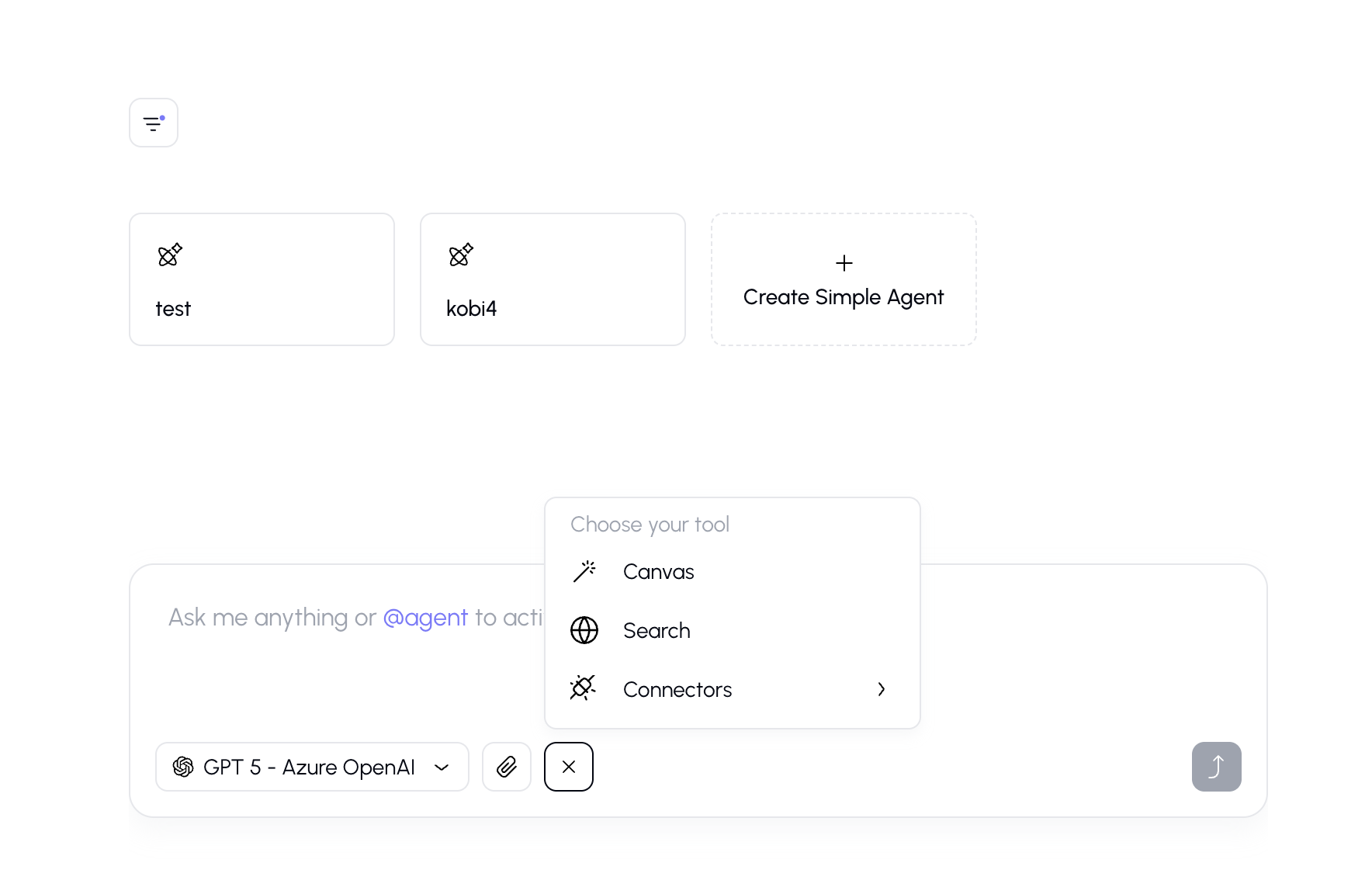
Available Tools
Canvas
Create and edit rich text documents right inside the chat. When you ask the AI to write something — a report, an email, an article — it can create a polished document in the Canvas panel.
See Canvas for full details.
Search the Web
Let the AI search the internet to find up-to-date information. When enabled, the AI can look up current events, technical documentation, product information, and more.
See Web Search for full details.
Connectors
Connect to external services like Microsoft Outlook. Connectors allow the AI to interact with your business tools.
See Outlook for details.
How Tools Work
- Select a tool from the tools menu before sending your message.
- A tool indicator chip appears near the input bar, showing which tool is active.
- Send your message as usual.
- The AI will use the tool as part of generating its response.
- Tool results appear in the conversation — for example, a Canvas document, web search results, or connector data.
You can deselect a tool by clicking the chip or opening the tools menu again.
Tips
- You don't always need to manually select tools — some agents have tools pre-configured and will use them automatically.
- Only one tool can be active at a time for a given message.
- If a tool doesn't seem to work, make sure it's properly configured by your organization's administrator.
- MCP integrations may require a one-time connection setup (like signing into Outlook).