Sharing Files
You can share your files and folders with team members, giving them access to use your documents in their own conversations or view them directly. The sharing system includes access controls so you stay in charge of who can see and do what with your files.
How to Share a File or Folder
- Go to the Sources page.
- Find the file or folder you want to share.
- Right-click it (or click the action menu) and select Share.
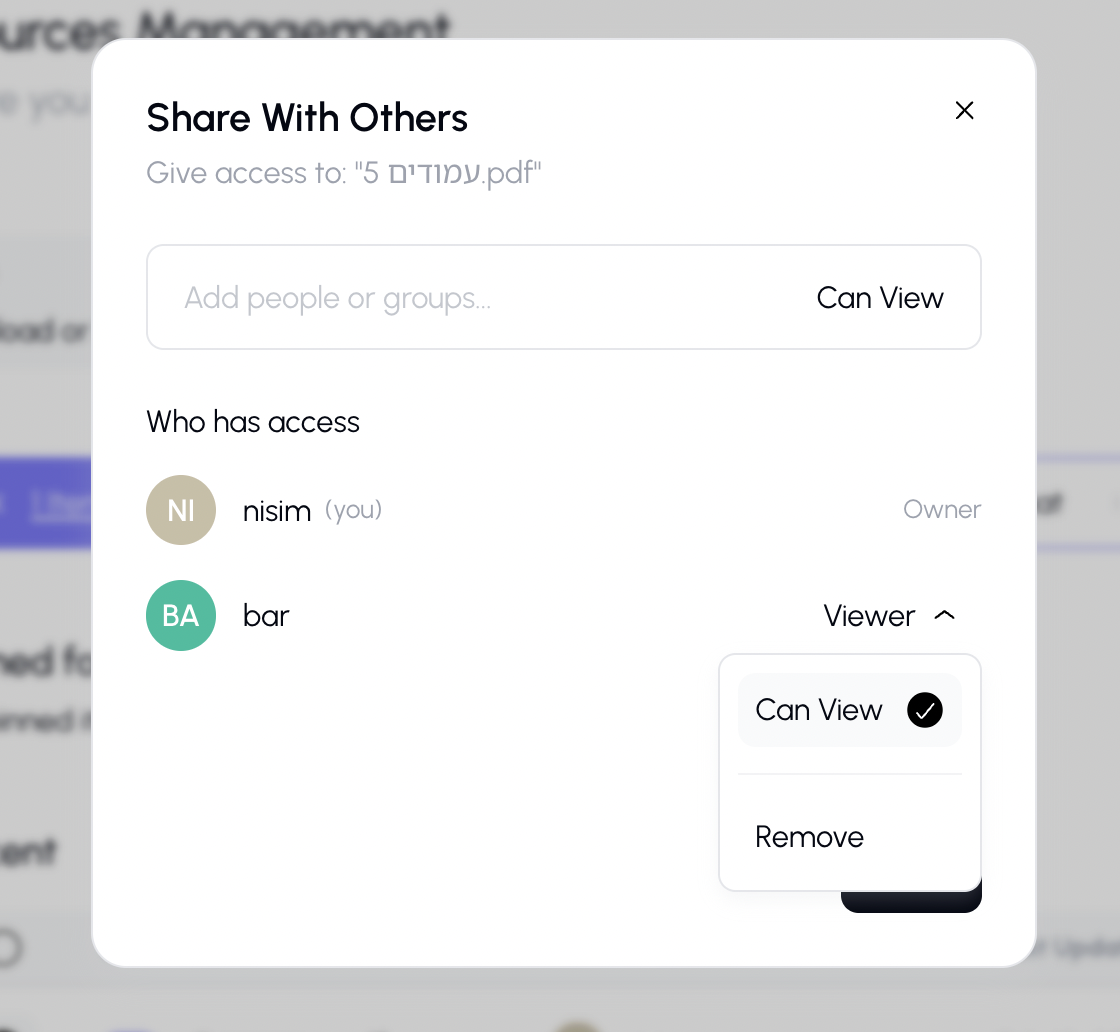
The Permissions Dialog
Adding People
- In the search field at the top, type a person's name or email.
- Select them from the suggestions.
- Choose their access level (View or Edit).
- Click Share to grant access.
Access Levels
| Level | What They Can Do |
|---|---|
| View | Open the file, read its contents, use it as a knowledge source in chat |
| Edit | All of the above, plus modify the file's settings or content |
Managing Existing Access
The dialog shows everyone who currently has access:
- Change access level — Click the dropdown next to a person's name to adjust their permissions
- Remove access — Click the remove button to revoke a person's access entirely
Sharing Folders
When you share a folder, the person gets access to everything inside that folder, including subfolders and files. If you add new files to a shared folder later, those will also be accessible to the people you've shared it with.