History
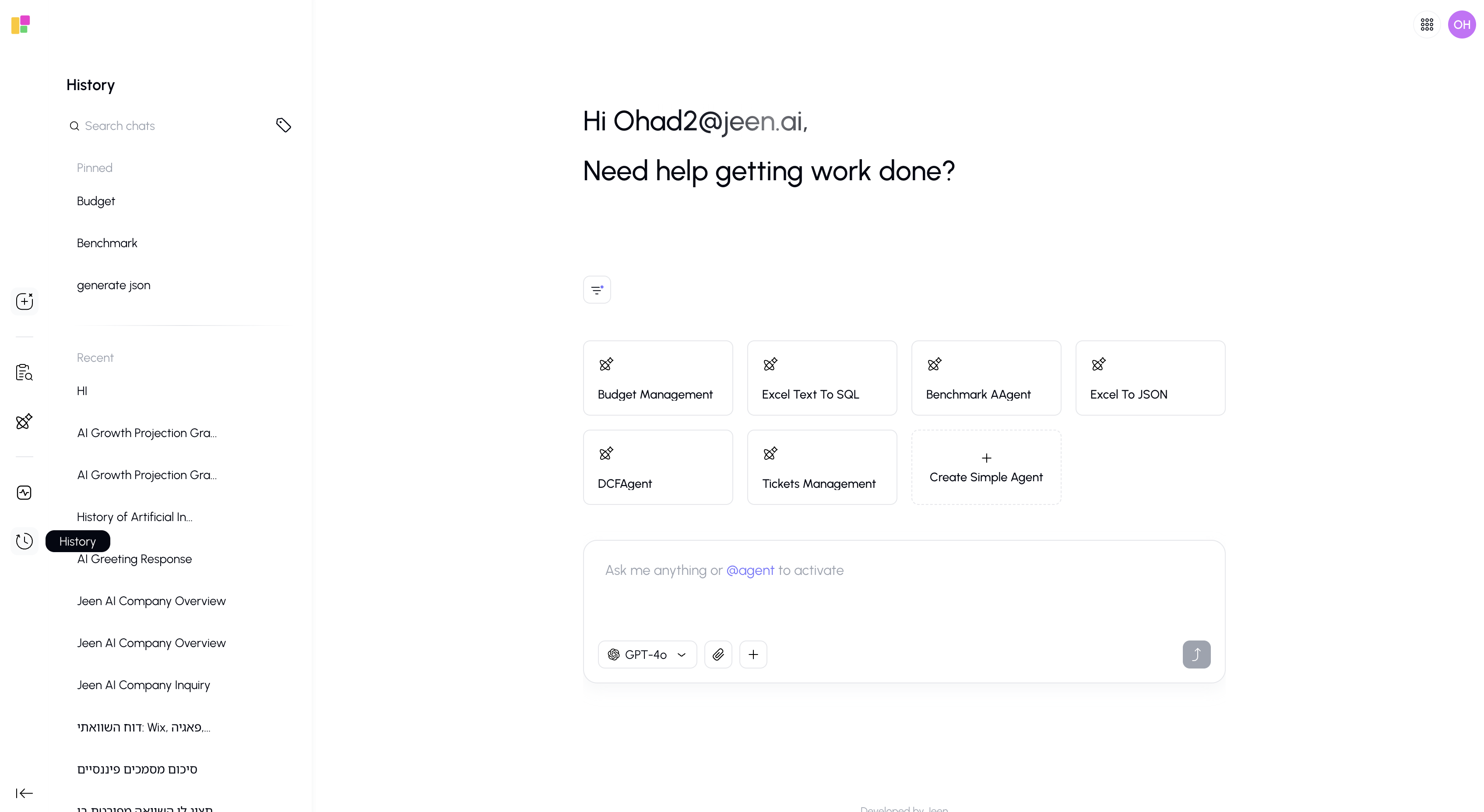
The History panel lets you browse, search, and manage all your past conversations. You can rename conversations, organize them with tags, pin important ones, and quickly jump back into any previous chat.
Opening the History Panel
Click the History icon (clock icon) in the bottom section of the sidebar. A panel will slide open showing all your past conversations.
Click the icon again to close the panel.
Browsing Your Conversations
Your conversations are displayed in a list, organized into sections:
Pinned Conversations
Conversations you've pinned appear at the top of the list for quick access. These stay at the top regardless of how old they are.
Recent Conversations
Below pinned items, you'll see your conversations sorted by most recent activity. Each item shows:
- Title — The name of the conversation (auto-generated or custom)
- Date and time — When the conversation last had activity
- Tags — Small colored dots indicating the categories you've assigned
- Preview — A brief snippet of the conversation content
Searching Conversations
At the top of the History panel, there's a search bar where you can type keywords to find specific conversations.
The search looks through conversation titles and message content. Matching results will be highlighted to help you find exactly what you're looking for.
Filtering by Tags
Next to the search bar, there's a tag filter button. Click it to filter your conversations by specific tags (categories).
Only conversations that have the selected tag(s) will appear in the list.
Conversation Actions
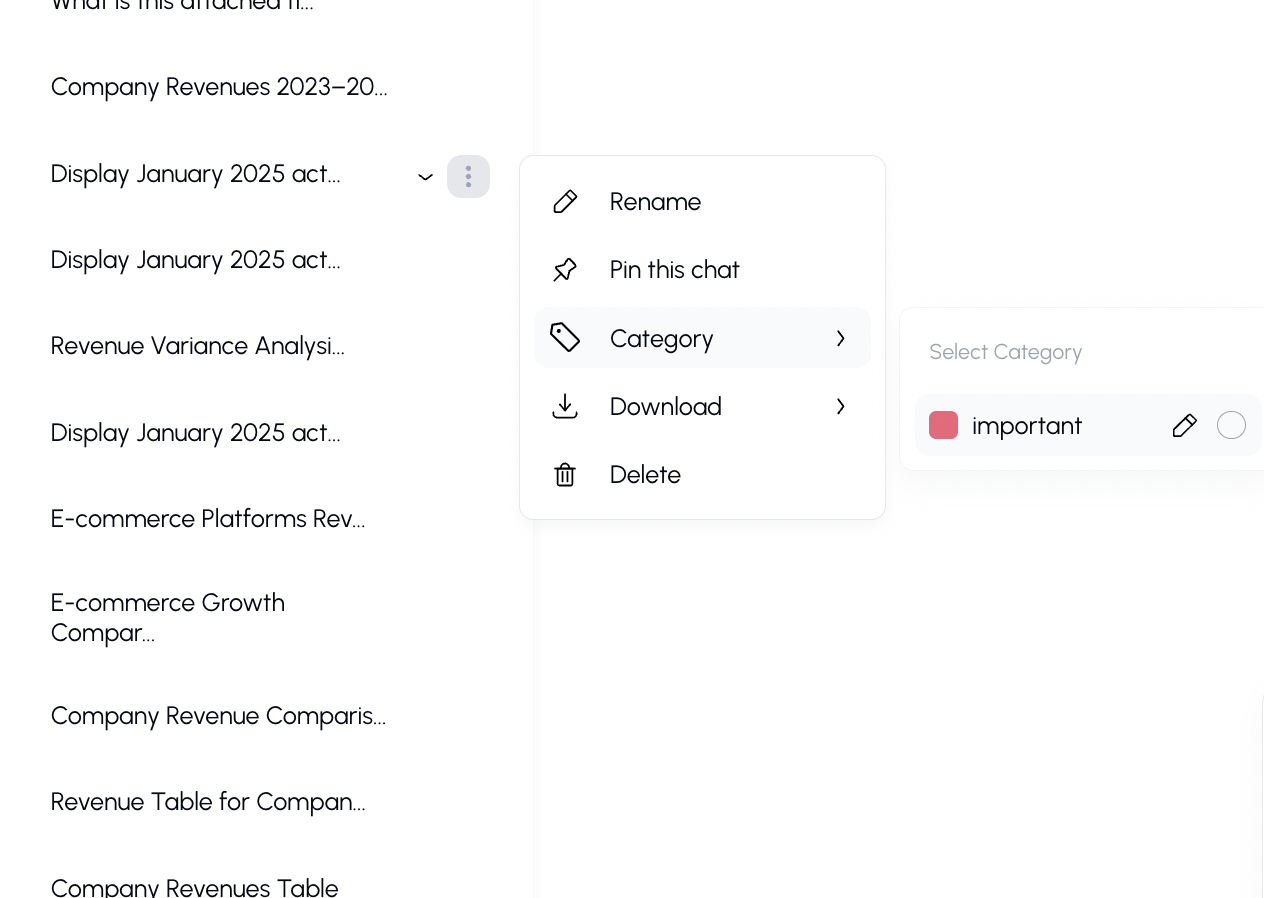
Rename
Give a conversation a custom name that makes it easy to recognize later.
- Select Rename from the context menu (or double-click the title).
- Type your new name.
- Press Enter to save, or Escape to cancel.
Pin / Unpin
Pin important conversations so they always appear at the top of your history list.
- Select Pin to pin a conversation.
- Select Unpin to remove it from the pinned section.
Add Tags (Categories)
Organize your conversations with colored tags.
- Select Category from the context menu.
- Choose from existing tags or create a new one.
- You can assign multiple tags to a single conversation.
- Tags appear as small colored dots on the conversation item.
Managing Tags: You can create new tags, change their colors, rename them, or delete them from the tag selector. Tags are personal to your account.
Download
Download a conversation for offline reference or sharing outside the platform.
Delete
Permanently remove a conversation. A confirmation dialog will appear before deletion to make sure you don't accidentally lose important conversations.
Tips
- Use tags to create your own organization system — for example, tag conversations by project, topic, or priority.
- Pinning is great for ongoing conversations you come back to frequently.
- The search feature is the fastest way to find a specific conversation when you remember a keyword or phrase from it.
- Renamed conversations are easier to find later — consider giving important chats meaningful names.